An inbox that keeps you on track
Filter submissions by form, status and date. Export selected data to CSV or JSON.
Explore the featureReceive submissions from your own HTML forms. See where they came from, organise them with statuses and keep customer conversations in one dashboard.
Connect your HTML form. Keep your website’s design.
Registration is temporarily unavailable. Existing account holders can still sign in.
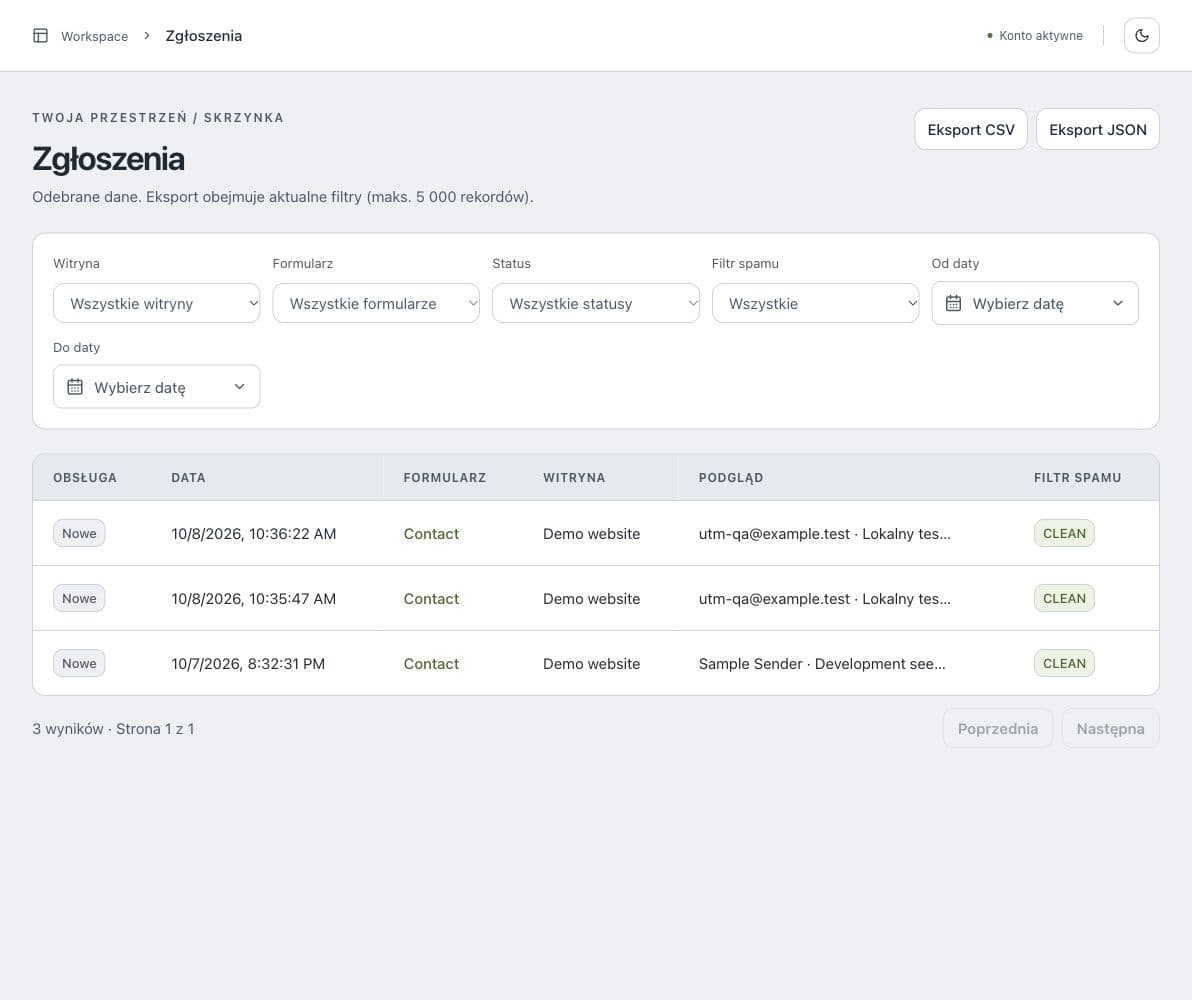
Dashboard shown in Polish. Select a view to explore what happens after a form is submitted.
Connect your website and form, then choose the allowed domains.
Receive submissions in an organised view with a history for each form.
Choose your form security settings and manage your account.
A submission starts a conversation. Read the message, change its status and see which campaign brought the customer to you — in one dashboard.
Filter submissions by form, status and date. Export selected data to CSV or JSON.
Explore the featureSubmission content, conversation history and compact UTM details. Once SMTP is configured, reply directly from the dashboard.
Explore the featureexample
<form method="POST" action="https://forms.your-domain.com/f/YOUR_PUBLIC_ID">
  <label>Name <input name="name" required /></label>
  <label>Email <input type="email" name="email" required /></label>
  <input type="hidden" name="utm_source" value="newsletter" />
  <!-- optional: Turnstile or reCAPTCHA protection -->
  <button type="submit">Send</button>
</form>Name the form and set its domains. On Free, verify domain ownership with a DNS TXT record.
POST your HTML form to its receiving address. If CAPTCHA is enabled, add its widget and pass its token too.
Manage submissions in the dashboard. Connect a webhook, configure SMTP or use MCP in Codex and Claude.
Collect service enquiries from an existing form. Organise them with statuses and keep the conversation with the submission.
Send UTM parameters with the message to see where an enquiry came from. The integration script can fill them automatically.
Organise forms by website in your account. Each form has its own CAPTCHA and integration settings.
Connect Codex or Claude Code to ZoraForms. Describe what you need and your AI client will create a website, configure a form, and prepare code to paste into your site.
Check my limits. Create a website for example.com and a contact form. Set the allowed origin to https://example.com. Generate HTML code with UTM support.
Resources created in your account.
Origin set for example.com.
Integration ready to paste into your site.
First connect your client with a token from the dashboard. This example does not make changes to your account.
From one form to thousands of submissions.
Choose a plan for your project.
Free plan at no cost.
Paid plans renew automatically.
A few practical details about integration and the dashboard.
Integration documentationNo. A standard HTML form can POST data after changing its action to the ZoraForms address. CAPTCHA and automatic UTM capture require the appropriate integration code; see Docs for examples.
Free includes 1 website, 1 form and 100 submissions per month. Before receiving submissions, verify your own domain through DNS TXT. Current limits and retention are shown in the pricing section.
Yes, once SMTP sending is configured. You can use your own SMTP and set a CC address. Ordinary email replies return to the dashboard when the operator configures IMAP receiving; customers can also reply using the conversation link.
Webhooks send events to your chosen endpoint. The MCP server lets Codex and Claude use available operations according to the token’s permissions. Setup instructions are in Docs.
From your first form to a more organised inbox. Discover practical ways to use ZoraForms.
Connect a real HTML form to ZoraForms and understand what static hosting does not provide.
Design a short form, retain UTM data, and handle every submission from the dashboard.
Combine Turnstile or reCAPTCHA with form code and reject submissions that cannot be verified.